
Retrieval Augmented Generation (RAG) is being mentioned everywhere at the moment. Why? because it has far-reaching applications for businesses to integrate their data quickly (and potentially update frequently) with an LLM such as ChatGPT rather than having to train a model with that data.
Azure AI Studio https://ai.azure.com/portal has a very user-friendly way to dive into RAG with your business data, but before you can create an index based on this data you’ll have to have to purchase the Basic tier of AI Search (on top of the GPT costs) which is USD$0.10 an hour per scale unit, more details on Azure AI Search pricing. There is also the Azure Open AI pricing to consider, as an example GPT-4 has a cost of USD$0.03 for 1000 input tokens and USD$0.06 for 1000 output tokens.
While the Azure Open AI costs are unavoidable, if you dont mind the AI Search costs and want to use the Azure AI Studio UI try this MSLearn quickstart guide. If you prefer to use the free tier of AI Search (there are limits to index size and number of indexes) and feel ok diving into a nodejs app, there is an alternative to set up your index from your PC by using the Azure Open AI and AI Search JS SDKs. Let’s try it out.
Tutorial – Nodejs custom data and query with a ChatGPT prompt
Knowledge: Assumes you are farmiliar with using Azure portal, git and node
PreReqs – Azure account, Code editor (VSCode, etc), Node 18+, git
Get the code
git clone https://github.com/degero-examples/azure-openaisearch-demo.gitCopy the sample.env file and call it .env in the same location
Key files:
- Hotels_quickstart_index.json – This provides all the indexing schema info for Azure AI Search
- Hotels.json – sample data set to use with your LLM.
- Index.js – Creates an index of hotels.json and provides the AI Search API to the Open AI client library to give your data augmentation on your chat requests. You can alter ‘exampleQuestions’ to your liking based on information you may know in hotel.json
Setup your Azure Open AI deployment, AI Search instance, and API keys
In https://portal.azure.com create a new resource group like ‘azureai-demo’
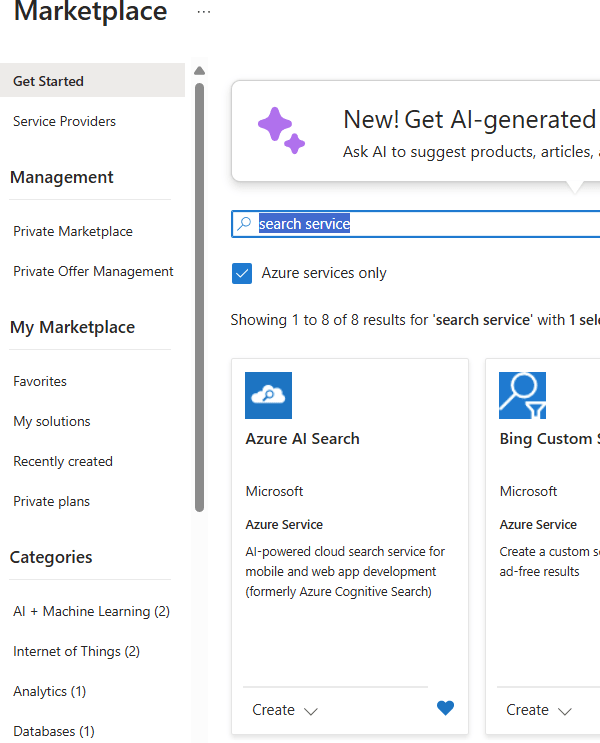
In the resource group click ‘Create’, search for ‘Search service’, and select Azure AI Search as pictured.
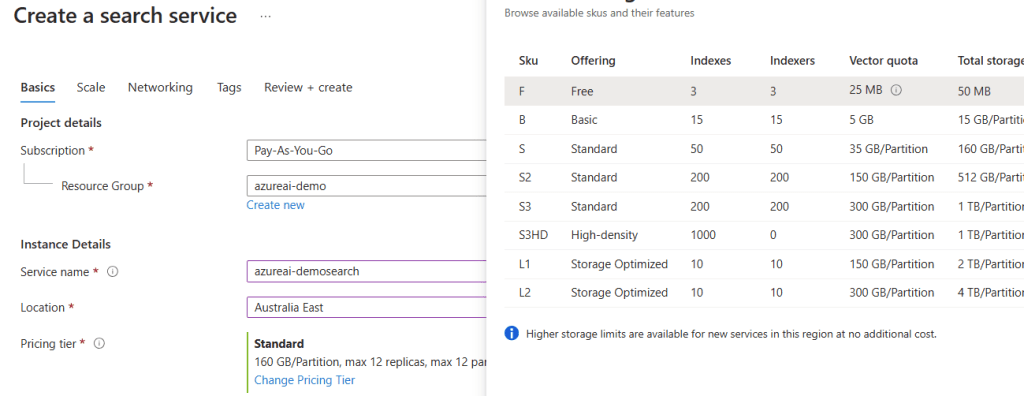
Select a pricing tier as ‘Free’ as below (you get 1 free search plan per subscription) then click ‘Review and create’ then ‘Create’.
Go to the resource, copy the URL field as below and set it as SEARCH_API_ENDPOINT in your .env file.

Click ‘Keys’ in the left panel then copy the Primary admin key and set it as SEARCH_API_KEY in your .env file
In the resource group click ‘Create’, search for ‘Azure open AI services’, and select Azure AI services as pictured.
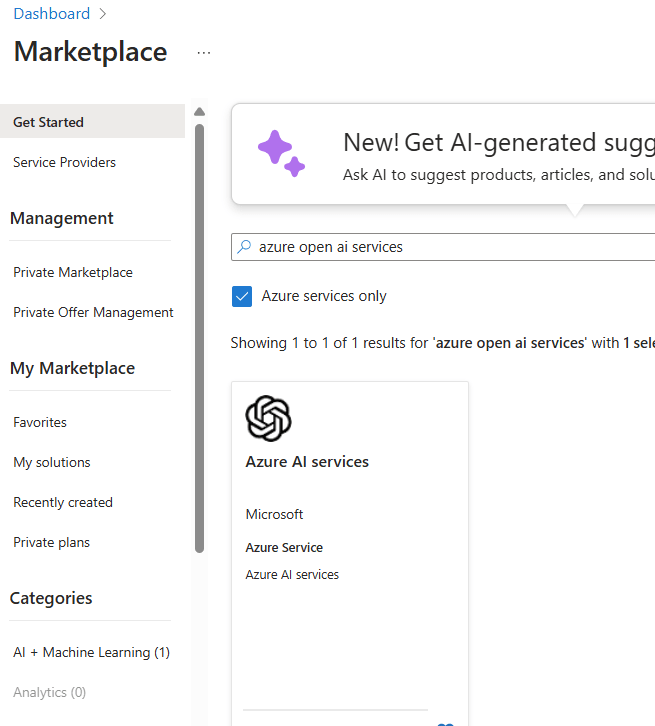
Give it a unique name, make note of it (for use later), and select the S0 Tier then ‘Review and create’ then ‘Create’
Go to your new resource and on the overview screen click ‘Go to Azure AI Studio’

In the Studio, click ‘Resources and keys’ and click on your new resource.
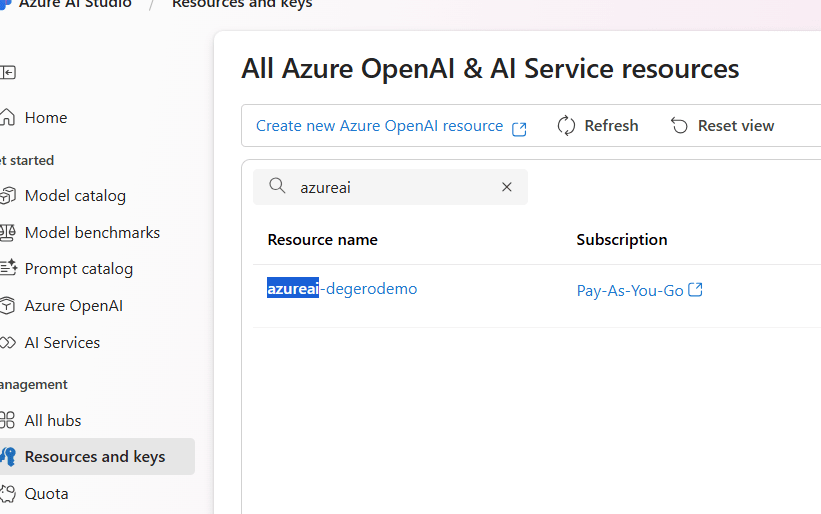
Under deployment click ‘Create deployment’ and select a model eg GPT-4 and create take note of the name you give it.
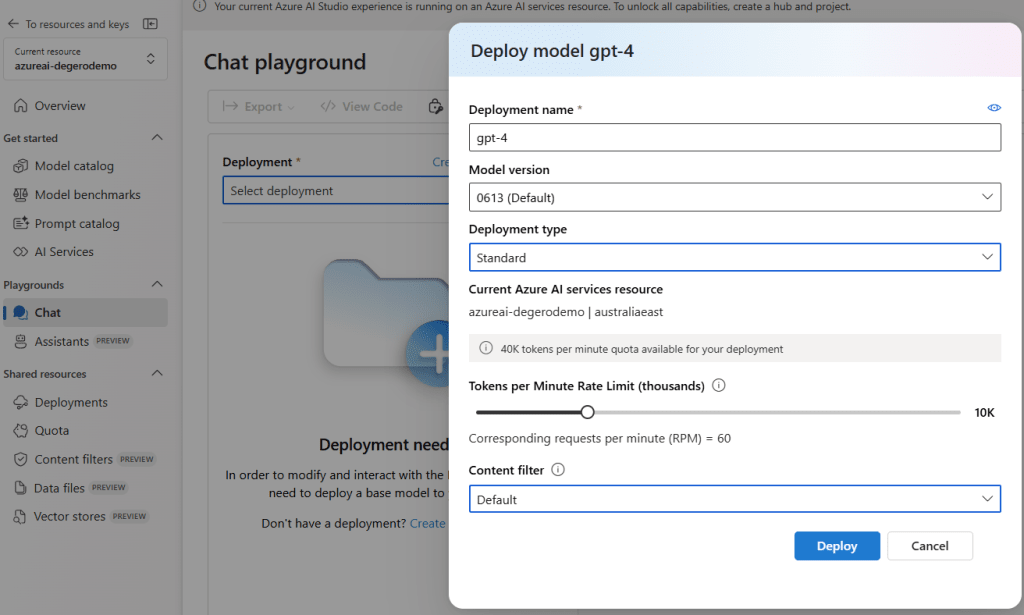
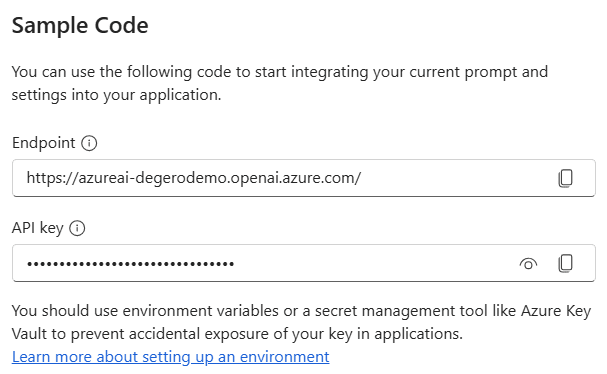
The Chat playground should open, if not click ‘Chat’ in the side panel. Click the ‘View Code’ button, copy the Endpoint and a API Key to go into the .env file, and set AZURE_OPENAI_ENDPOINT and AZURE_API_KEY fields. Set AZURE_OPENAI_DEPLOYMENT_ID as the name you gave your deployment and save the file.
Run the app
In your terminal or VSCode terminal under the cloned repo folder run
node ./index.jsYou should get an output like below, you can see an index was created of the hotel data, a prompt was sent to your GPT deployment and a valid answer came back about a hotel for a foodie.
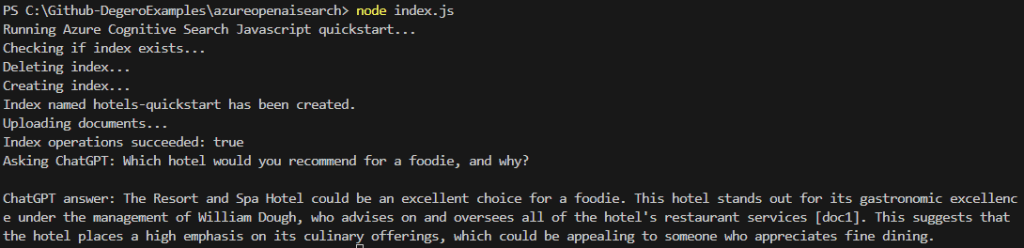
You can inspect the hotels.json and rephrase the ‘exampleQuestions’ in index.js to try out different questions. Also once an index is created you could comment out the ‘deleteIndexIfExists’ and ‘createIndex’ in index.js to make it run quicker.
— Bonus Section: Use blob storage for your sample data set —
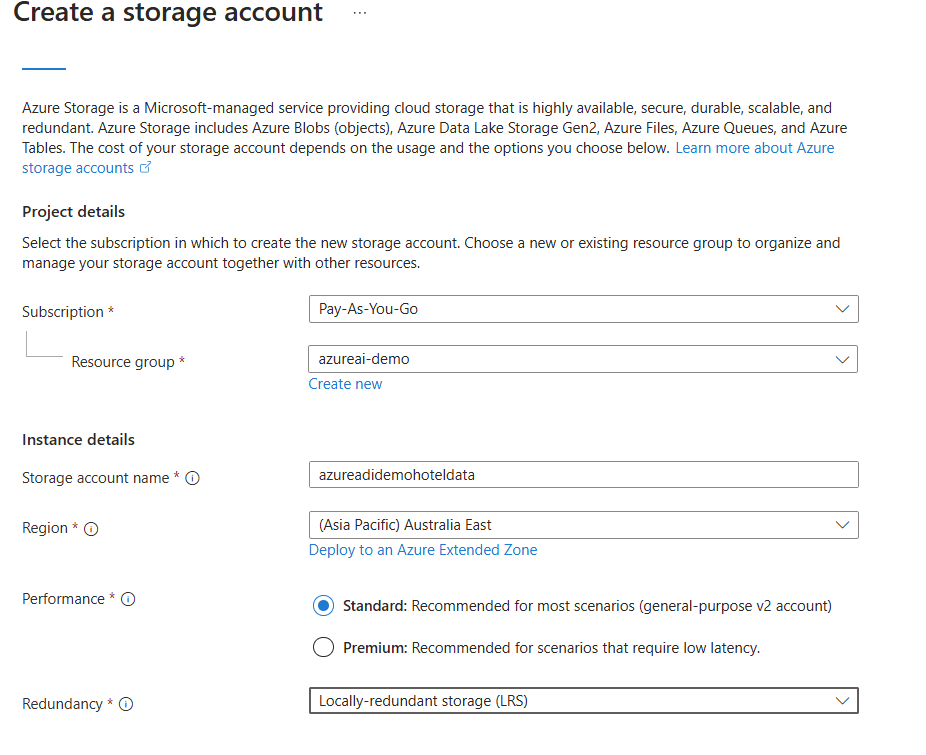
In the Azure portal under your resource group click Create, search for ‘Storage account’, create a Hot LRS storage as pictured with a unique name (make note of the name), and click ‘Review and create’ then create.
Navigate to your resource and click ‘Containers’ in the sidebar under the ‘Data storage’ section
Create a container ‘hotels’
Click the container then the ‘Upload’ button and select the files in your cloned repo ‘testblobfiles’ folder
After the files have been uploaded, click ‘Shared access tokens’ in the settings sidebar, change the expiry date/time as needed for how long you wish to access the files, add the ‘List’ permission as pictured, then click ‘Generate SAS token and URL’
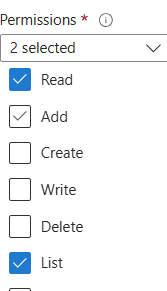
Copy the Blob SAS token shown and set it in your .env file as STORAGE_SAS (wrap in double quotes), set STORAGE_NAME as the name of your storage account and STORAGE_CONTAINER as ‘hotels’ then save
In your terminal/VSCode terminal run
node ./index.jsYou should get a similar (its not always the exact same words) output from the prompt.
Cleaning up
Delete your resource group in the Azure Portal
Summary
Now you have tried out using Indexing and LLM prompting in code, you could consider using this with your own data and updating the schema file to suit it (see reference below). Also seperating the indexing code out you could consider running this daily as new data is added to a storage container so your LLM prompts have the latest data.
If you have any feedback or issues with the tutorial please leave a comment. I hope this post has helped you get started with RAG in Azure AI.
Resources
https://learn.microsoft.com/en-us/azure/search/search-what-is-an-index#schema-of-a-search-index
https://learn.microsoft.com/en-us/azure/search/search-what-is-azure-search
https://learn.microsoft.com/en-us/azure/ai-studio/what-is-ai-studio
https://learn.microsoft.com/en-us/azure/ai-studio/concepts/retrieval-augmented-generation
Use your own data with Azure OpenAI Service – Azure OpenAI | Microsoft Learn
Github – Azure JS SDK AI samples
Azure AI/ML Studios